> ## Documentation Index
> Fetch the complete documentation index at: https://cubed3-feat-druid-driver-streaming.mintlify.site/llms.txt
> Use this file to discover all available pages before exploring further.
# Observable
> Observable is a collaborative data notebook.
Here's a short video guide on how to connect Observable to Cube.
## Connect from Cube Cloud
Navigate to the [Integrations](/admin/connect-to-data/visualization-tools)
page, click **Connect to Cube**, and choose **Observable** to get
detailed instructions.
## Connect from Cube Core
You can connect a Cube deployment to Observable using the [SQL API][ref-sql-api]
or the [REST (JSON) API][ref-rest-api].
In Cube Core, the SQL API is disabled by default. Enable it and [configure
the credentials](/reference/core-data-apis/sql-api#configuration) to
connect to Observable.
## Connecting from Observable
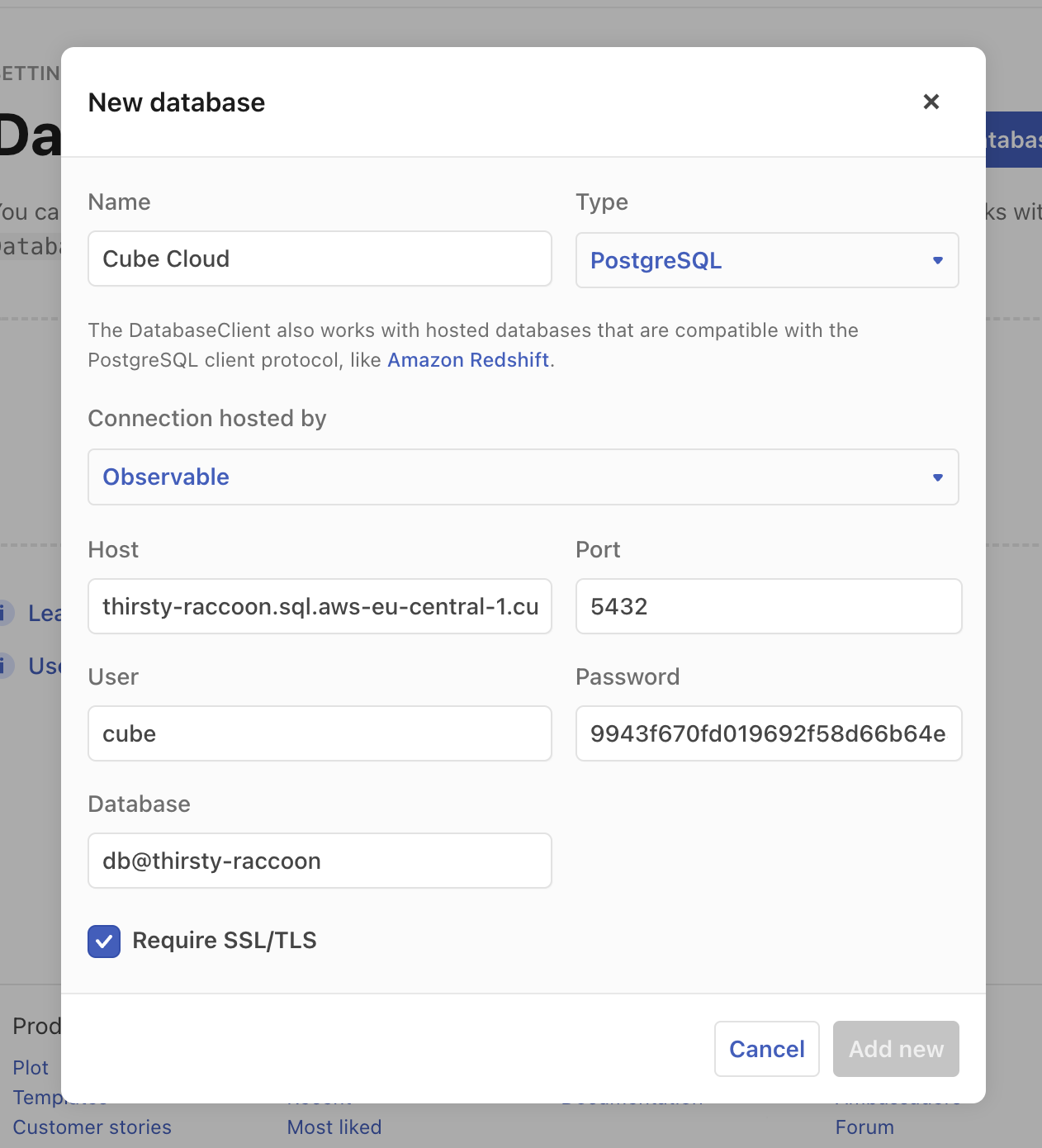
### Connecting via SQL API
Observable connects to Cube as to a Postgres database.
 ### Querying data with SQL API
Your cubes will be exposed as tables, where both your measures and dimensions
are columns.
Make sure to add a database to your notebook, and select **Database query** when
adding a new block.
You can write SQL in Observable that will be executed in Cube. Learn more about
Cube SQL syntax on the [reference page][ref-sql-api].
You can also create a visualization of the executed SQL query.
### Connecting via REST (JSON) API
For a Cube instance publicly available at a specific `HOST`, the REST (JSON) API URL
would be `HOST/cubejs-api/v1`. Please refer to the
[REST (JSON) API page](/reference/core-data-apis/rest-api) for details.
You will also need to generate a JSON Web Token that would be used to
authenticate requests to Cube.
Please check the [Security page](/embedding/authentication/jwt#generating-json-web-tokens)
to learn how to generate a token. We suggest generating a long-lived JWT that
won't expire soon.
### Querying data with REST (JSON) API
First, add two generic **JavaScript** cells:
Next, copy Cube's REST (JSON) API URL and the Authorization token and paste them into
their respective cells.
```javascript theme={null}
cubeRestApi =
"https://thirsty-raccoon.aws-eu-central-1.cubecloudapp.dev/cubejs-api/v1/load";
```
Because the Cube REST (JSON) API has the format of `HOST/cubejs-api/v1`, don't forget
to add the `/load` endpoint to the end of the data source API.
```javascript theme={null}
cubeRestApiJwtToken =
"Bearer eyJhbGciOiJIUzI1NiIsInR5cCI6IkpXVCJ9.eyJpYXQiOjE2NTgzMzM3OTZ9.gUOoDgo_RJka_ZANdwSw3v8GkM4ZzH9LjxrxKxkGAk0";
```
Also make sure to add the token next to the Bearer part of the Authorization
header.
Get your Cube query in the JSON
[query format](/reference/core-data-apis/rest-api/query-format) ready. You can
copy it from Cube's Playground or compose manually.
Paste the JSON query in another JavaScript cell as an object literal and give it
a name, I chose `jsonBody` for simplicity. Make sure to add a `query` parameter
for your JSON query.
```javascript theme={null}
jsonQuery = {
query: {
measures: ["orders.count"],
timeDimensions: [
{
dimension: "orders.created_at",
granularity: "month"
}
],
order: {
"orders.created_at": "asc"
}
}
}
```
Next, create another JavaScript cell with a POST request. Paste this POST
request in the cell. Don't forget to put the `jsonBody` object inside the
`JSON.stringify` call.
```javascript theme={null}
orders_over_time = fetch(cubeRestApi, {
method: "POST",
headers: {
Authorization: cubeRestApiJwtToken,
"Content-Type": "application/json",
},
body: JSON.stringify(jsonQuery),
})
.then((response) => response.json())
.then((json) => json.data);
```
Next, click the play button on the top right of the cell.
You can also create a visualization of the executed REST (JSON) API request.
[ref-sql-api]: /reference/core-data-apis/sql-api
[ref-rest-api]: /reference/core-data-apis/rest-api
### Querying data with SQL API
Your cubes will be exposed as tables, where both your measures and dimensions
are columns.
Make sure to add a database to your notebook, and select **Database query** when
adding a new block.
You can write SQL in Observable that will be executed in Cube. Learn more about
Cube SQL syntax on the [reference page][ref-sql-api].
You can also create a visualization of the executed SQL query.
### Connecting via REST (JSON) API
For a Cube instance publicly available at a specific `HOST`, the REST (JSON) API URL
would be `HOST/cubejs-api/v1`. Please refer to the
[REST (JSON) API page](/reference/core-data-apis/rest-api) for details.
You will also need to generate a JSON Web Token that would be used to
authenticate requests to Cube.
Please check the [Security page](/embedding/authentication/jwt#generating-json-web-tokens)
to learn how to generate a token. We suggest generating a long-lived JWT that
won't expire soon.
### Querying data with REST (JSON) API
First, add two generic **JavaScript** cells:
Next, copy Cube's REST (JSON) API URL and the Authorization token and paste them into
their respective cells.
```javascript theme={null}
cubeRestApi =
"https://thirsty-raccoon.aws-eu-central-1.cubecloudapp.dev/cubejs-api/v1/load";
```
Because the Cube REST (JSON) API has the format of `HOST/cubejs-api/v1`, don't forget
to add the `/load` endpoint to the end of the data source API.
```javascript theme={null}
cubeRestApiJwtToken =
"Bearer eyJhbGciOiJIUzI1NiIsInR5cCI6IkpXVCJ9.eyJpYXQiOjE2NTgzMzM3OTZ9.gUOoDgo_RJka_ZANdwSw3v8GkM4ZzH9LjxrxKxkGAk0";
```
Also make sure to add the token next to the Bearer part of the Authorization
header.
Get your Cube query in the JSON
[query format](/reference/core-data-apis/rest-api/query-format) ready. You can
copy it from Cube's Playground or compose manually.
Paste the JSON query in another JavaScript cell as an object literal and give it
a name, I chose `jsonBody` for simplicity. Make sure to add a `query` parameter
for your JSON query.
```javascript theme={null}
jsonQuery = {
query: {
measures: ["orders.count"],
timeDimensions: [
{
dimension: "orders.created_at",
granularity: "month"
}
],
order: {
"orders.created_at": "asc"
}
}
}
```
Next, create another JavaScript cell with a POST request. Paste this POST
request in the cell. Don't forget to put the `jsonBody` object inside the
`JSON.stringify` call.
```javascript theme={null}
orders_over_time = fetch(cubeRestApi, {
method: "POST",
headers: {
Authorization: cubeRestApiJwtToken,
"Content-Type": "application/json",
},
body: JSON.stringify(jsonQuery),
})
.then((response) => response.json())
.then((json) => json.data);
```
Next, click the play button on the top right of the cell.
You can also create a visualization of the executed REST (JSON) API request.
[ref-sql-api]: /reference/core-data-apis/sql-api
[ref-rest-api]: /reference/core-data-apis/rest-api