> ## Documentation Index
> Fetch the complete documentation index at: https://cubed3-feat-druid-driver-streaming.mintlify.site/llms.txt
> Use this file to discover all available pages before exploring further.
# Slack
> Connect Cube to Slack for notifications and AI-powered analytics chat.
Available on [Premium and above plans](https://cube.dev/pricing).
Cube's Slack integration enables two capabilities:
* **[Notifications](#notifications)** — Deliver scheduled dashboard screenshots
to Slack channels.
* **[Slack Agent](#slack-agent)** — Let your team ask data questions directly in
Slack and get AI-powered answers from the
[Analytics Chat][ref-analytics-chat] agent.
## Setup
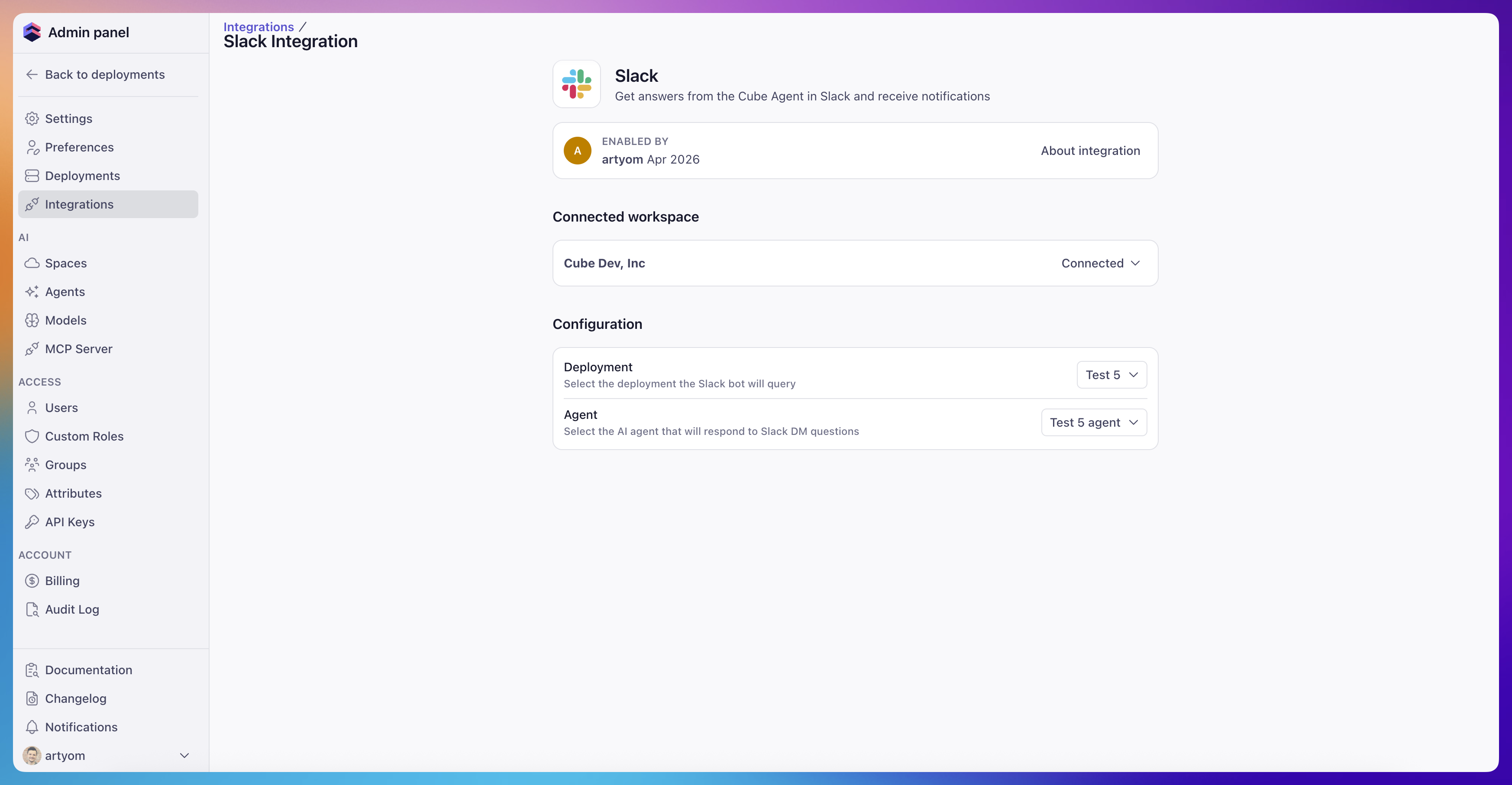
A workspace admin connects Slack from the **Settings → Integrations → Slack**
page. The setup flow authorizes Cube to interact with your Slack workspace via
OAuth.
Once connected, the admin selects:
* A **deployment** that the Slack integration will use.
* An **agent** that will respond to questions in Slack.
 ## Notifications
Slack notifications post a dashboard screenshot to a Slack channel after each
[scheduled refresh][ref-scheduled-refreshes]. See [Notifications][ref-notifications]
for details on creating and configuring notification schedules.
## Slack Agent
The Slack Agent brings [Analytics Chat][ref-analytics-chat] into Slack.
Anyone in your Slack workspace can send a direct message to the Cube app and
get AI-powered answers grounded in your semantic layer — without leaving Slack.
### How it works
1. A user sends a direct message to the Cube Slack app.
2. Cube matches the user by **email address** — the email in Slack must match
an existing Cube user.
3. An [Analytics Chat][ref-analytics-chat] session is created, and the agent
responds in a **Slack thread**.
## Notifications
Slack notifications post a dashboard screenshot to a Slack channel after each
[scheduled refresh][ref-scheduled-refreshes]. See [Notifications][ref-notifications]
for details on creating and configuring notification schedules.
## Slack Agent
The Slack Agent brings [Analytics Chat][ref-analytics-chat] into Slack.
Anyone in your Slack workspace can send a direct message to the Cube app and
get AI-powered answers grounded in your semantic layer — without leaving Slack.
### How it works
1. A user sends a direct message to the Cube Slack app.
2. Cube matches the user by **email address** — the email in Slack must match
an existing Cube user.
3. An [Analytics Chat][ref-analytics-chat] session is created, and the agent
responds in a **Slack thread**.
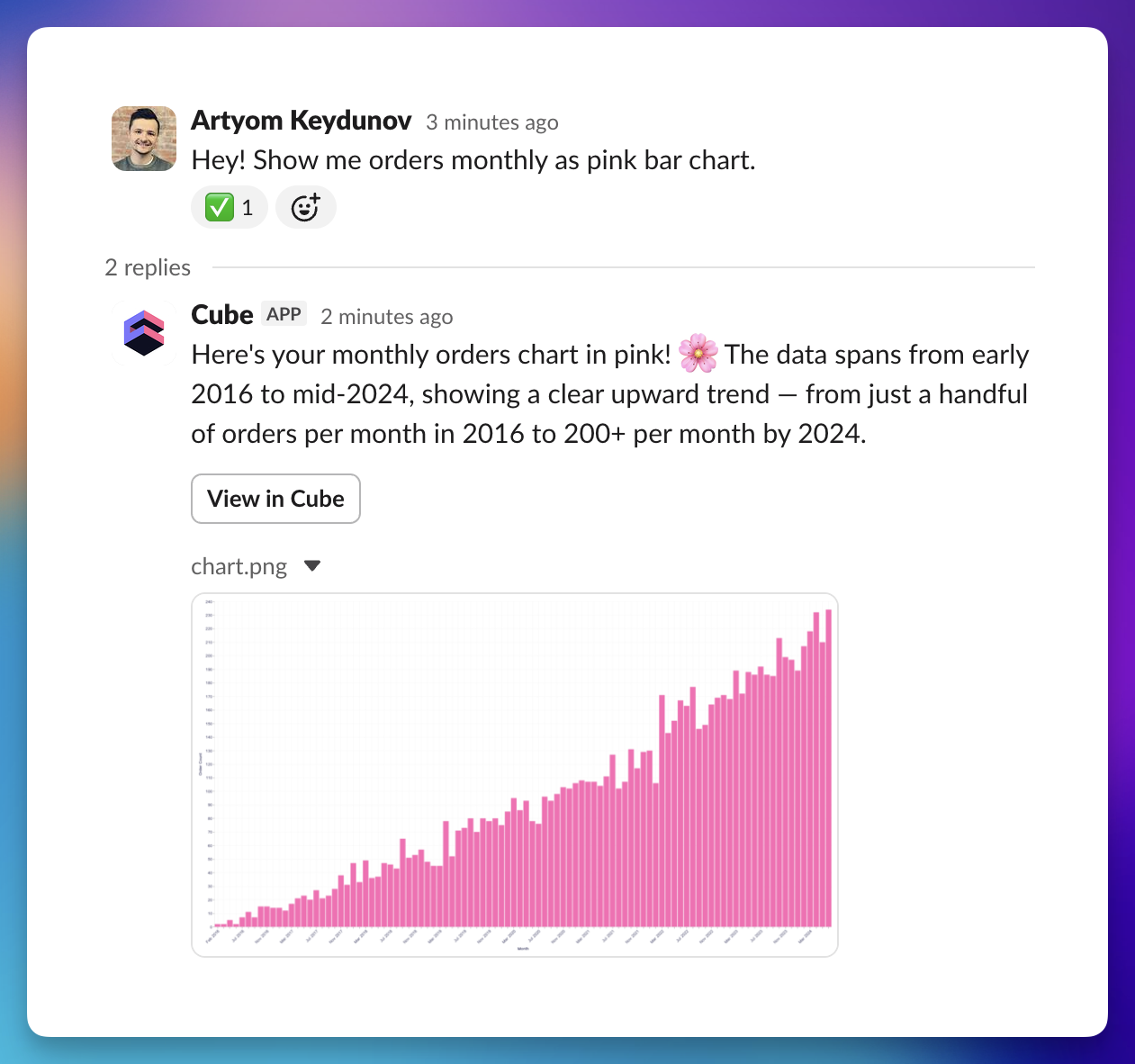 Follow-up questions can be asked by replying in the same Slack thread, keeping
the conversation contextual.
### Customizing responses with rules
The agent is aware when it's responding in Slack, so you can use [rules][ref-rules]
to tailor its behavior on this surface. For example, to suppress charts in Slack
unless the user explicitly asks for one, add an `always` rule:
```markdown theme={null}
---
type: always
---
When responding in Slack, do not include charts in the response unless the user
has explicitly asked for them.
```
### User matching
Cube identifies Slack users by their email address. For the integration to work,
a user with the **same email** must exist in both Cube and the connected Slack
workspace. Every Slack user who wants to use the agent must have a Cube account
(a Viewer role is sufficient). If no matching Cube user is found, the agent will
not respond.
### Limitations
Slack Agent is in active development. The following limitations apply:
* **DMs only** — The Slack Agent currently works only in direct messages with
the Cube app. Channel mentions are not supported.
* **One agent** — Only one agent can be active at a time. Admins can change the
selected agent in the Slack integration settings.
* **One-way message sync** — Chats initiated from Slack are visible in the Cube
UI, and you can post messages from the Cube UI, but those messages will not
appear in the corresponding Slack thread.
* **Email matching required** — Users must have the same email address in both
Cube and Slack.
[ref-analytics-chat]: /docs/explore-analyze/analytics-chat
[ref-notifications]: /docs/explore-analyze/notifications
[ref-scheduled-refreshes]: /analytics/scheduled-refreshes
[ref-rules]: /admin/ai/rules
Follow-up questions can be asked by replying in the same Slack thread, keeping
the conversation contextual.
### Customizing responses with rules
The agent is aware when it's responding in Slack, so you can use [rules][ref-rules]
to tailor its behavior on this surface. For example, to suppress charts in Slack
unless the user explicitly asks for one, add an `always` rule:
```markdown theme={null}
---
type: always
---
When responding in Slack, do not include charts in the response unless the user
has explicitly asked for them.
```
### User matching
Cube identifies Slack users by their email address. For the integration to work,
a user with the **same email** must exist in both Cube and the connected Slack
workspace. Every Slack user who wants to use the agent must have a Cube account
(a Viewer role is sufficient). If no matching Cube user is found, the agent will
not respond.
### Limitations
Slack Agent is in active development. The following limitations apply:
* **DMs only** — The Slack Agent currently works only in direct messages with
the Cube app. Channel mentions are not supported.
* **One agent** — Only one agent can be active at a time. Admins can change the
selected agent in the Slack integration settings.
* **One-way message sync** — Chats initiated from Slack are visible in the Cube
UI, and you can post messages from the Cube UI, but those messages will not
appear in the corresponding Slack thread.
* **Email matching required** — Users must have the same email address in both
Cube and Slack.
[ref-analytics-chat]: /docs/explore-analyze/analytics-chat
[ref-notifications]: /docs/explore-analyze/notifications
[ref-scheduled-refreshes]: /analytics/scheduled-refreshes
[ref-rules]: /admin/ai/rules