> ## Documentation Index
> Fetch the complete documentation index at: https://cubed3-feat-druid-driver-streaming.mintlify.site/llms.txt
> Use this file to discover all available pages before exploring further.
# Dashboards
> Embed Cube dashboards into your applications via iframe.
Iframe embedding is available on [Premium and Enterprise plans](https://cube.dev/pricing).
Embed any [dashboard](/docs/explore-analyze/dashboards) into your application using an iframe. Dashboards can be embedded with either authentication mode:
* **[Private embedding](/embedding/iframe/auth/private)** — for internal users with Cube accounts (e.g., embedding in Notion, Salesforce, internal tools)
* **[Signed embedding](/embedding/iframe/auth/signed)** — for external/customer-facing applications using server-generated sessions
## Embed with private embedding
To embed a dashboard for internal users:
1. Open your dashboard in Cube
2. Click **Share** → **Embed**
3. Copy the generated iframe code
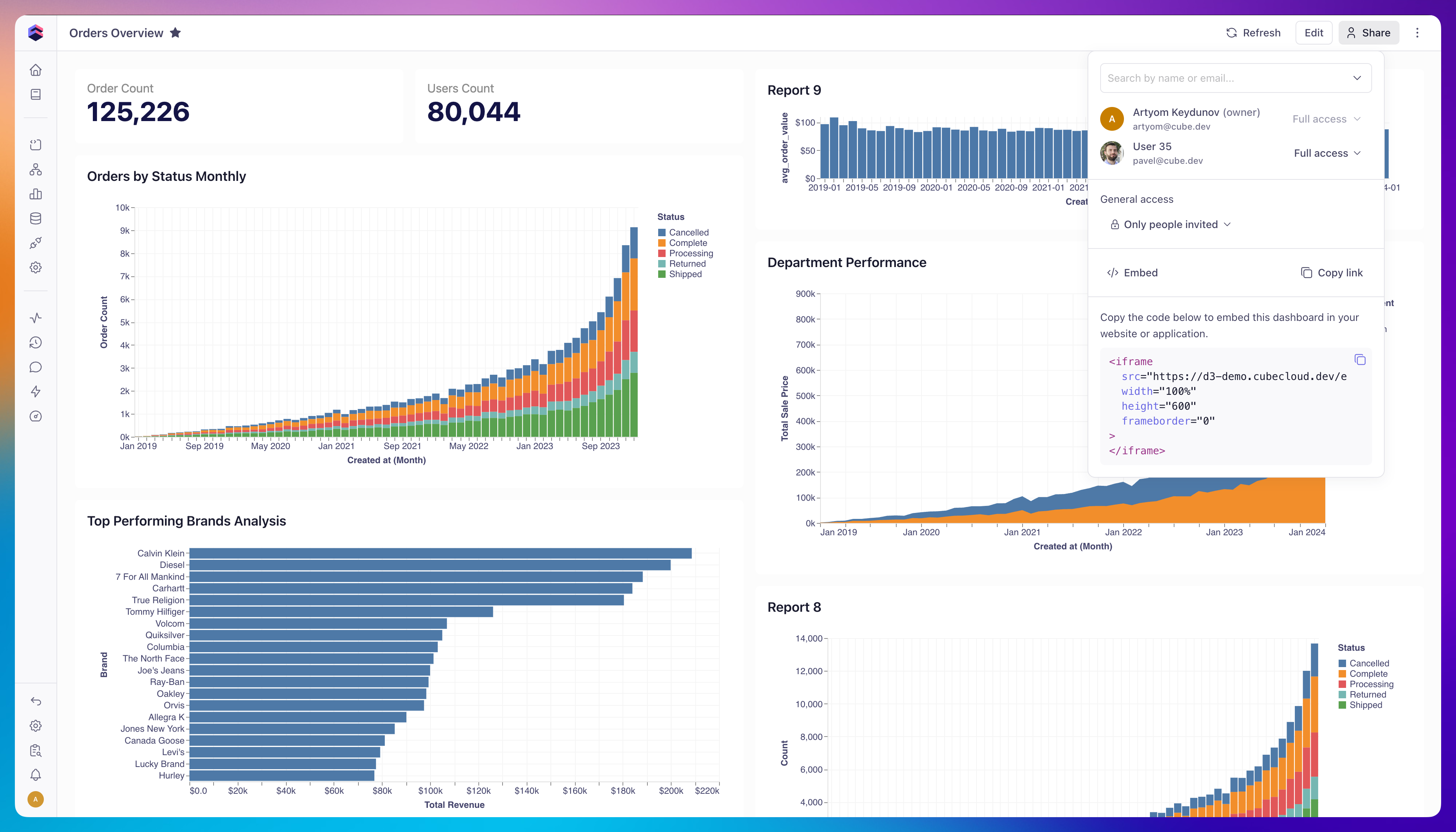 Then paste the iframe code into your application:
```html theme={null}
```
Users will be prompted to sign in with their Cube credentials when accessing the embedded dashboard. See [Private embedding](/embedding/iframe/auth/private) for details on the auth model and integration examples (Notion, Salesforce).
## Embed with signed embedding
To embed a dashboard for external/customer-facing applications, generate a session on your backend and pass the session ID into the iframe:
```html theme={null}
```
See [Signed embedding](/embedding/iframe/auth/signed) for the full session generation flow, API key setup, and a complete working example.
## Pre-set dashboard filters via URL
You can pre-set dashboard filter values by adding URL parameters in the format
`?f_.=`. The `` and ``
must match the internal names (not display titles) of the semantic view and
dimension configured on the filter widget. If the filter type is omitted, it
defaults to `equals`.
Example:
```text theme={null}
https://your-tenant.cubecloud.dev/embed/dashboard/YOUR_DASHBOARD_PUBLIC_ID?session=YOUR_SESSION_ID&f_orders_transactions.users_country={"value":"USA"}
```
This works on both regular and published (embedded) dashboards. The filter is
only applied if a matching filter widget for that dimension already exists on the
dashboard.
## Allow CSV export
By default, embedded dashboards do not expose a download action on individual
widgets. To let viewers download a chart widget's data as a CSV file, add the
`allowExport=true` query parameter to the embed URL:
```text theme={null}
https://your-tenant.cubecloud.dev/embed/dashboard/YOUR_DASHBOARD_PUBLIC_ID?session=YOUR_SESSION_ID&allowExport=true
```
When enabled, each chart widget's ⋮ menu shows a **Download as CSV** action. The
CSV is generated client-side from the data already loaded into the widget, so no
additional query is issued. The parameter is opt-in — omit it (the default) to
keep the download action hidden.
## Customize appearance
You can style an embedded dashboard — background, padding, widget borders, titles, and fonts — from the **Styling** panel in the Dashboard Builder. See [Dashboards → Styling](/docs/explore-analyze/dashboards/styling) for the full list of options.
Then paste the iframe code into your application:
```html theme={null}
```
Users will be prompted to sign in with their Cube credentials when accessing the embedded dashboard. See [Private embedding](/embedding/iframe/auth/private) for details on the auth model and integration examples (Notion, Salesforce).
## Embed with signed embedding
To embed a dashboard for external/customer-facing applications, generate a session on your backend and pass the session ID into the iframe:
```html theme={null}
```
See [Signed embedding](/embedding/iframe/auth/signed) for the full session generation flow, API key setup, and a complete working example.
## Pre-set dashboard filters via URL
You can pre-set dashboard filter values by adding URL parameters in the format
`?f_.=`. The `` and ``
must match the internal names (not display titles) of the semantic view and
dimension configured on the filter widget. If the filter type is omitted, it
defaults to `equals`.
Example:
```text theme={null}
https://your-tenant.cubecloud.dev/embed/dashboard/YOUR_DASHBOARD_PUBLIC_ID?session=YOUR_SESSION_ID&f_orders_transactions.users_country={"value":"USA"}
```
This works on both regular and published (embedded) dashboards. The filter is
only applied if a matching filter widget for that dimension already exists on the
dashboard.
## Allow CSV export
By default, embedded dashboards do not expose a download action on individual
widgets. To let viewers download a chart widget's data as a CSV file, add the
`allowExport=true` query parameter to the embed URL:
```text theme={null}
https://your-tenant.cubecloud.dev/embed/dashboard/YOUR_DASHBOARD_PUBLIC_ID?session=YOUR_SESSION_ID&allowExport=true
```
When enabled, each chart widget's ⋮ menu shows a **Download as CSV** action. The
CSV is generated client-side from the data already loaded into the widget, so no
additional query is issued. The parameter is opt-in — omit it (the default) to
keep the download action hidden.
## Customize appearance
You can style an embedded dashboard — background, padding, widget borders, titles, and fonts — from the **Styling** panel in the Dashboard Builder. See [Dashboards → Styling](/docs/explore-analyze/dashboards/styling) for the full list of options.